Platform walkthrough

The whole UCan platform, screen by screen

42 steps across 8 chapters — every page, what it's for, and exactly how to use it. Real screenshots taken from the live platform.

Newest this cycle

What just shipped

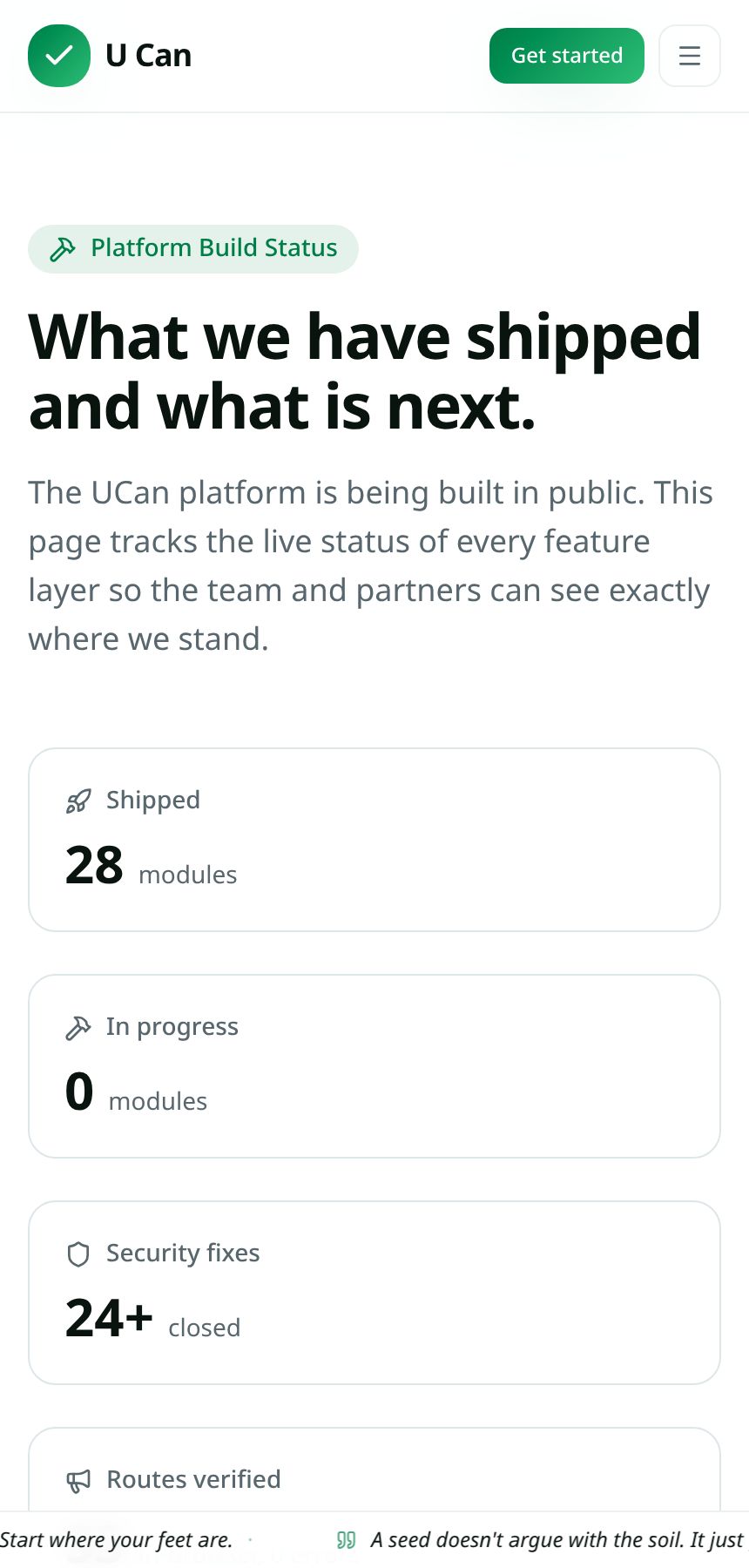
Captured on a real phone: the new hero with Miriam and the livelihood wheel, Corporate Miriam for investors, the multi-stream buyback tool, the admin tutorials and the live Build Status board.

Step by step on your phone
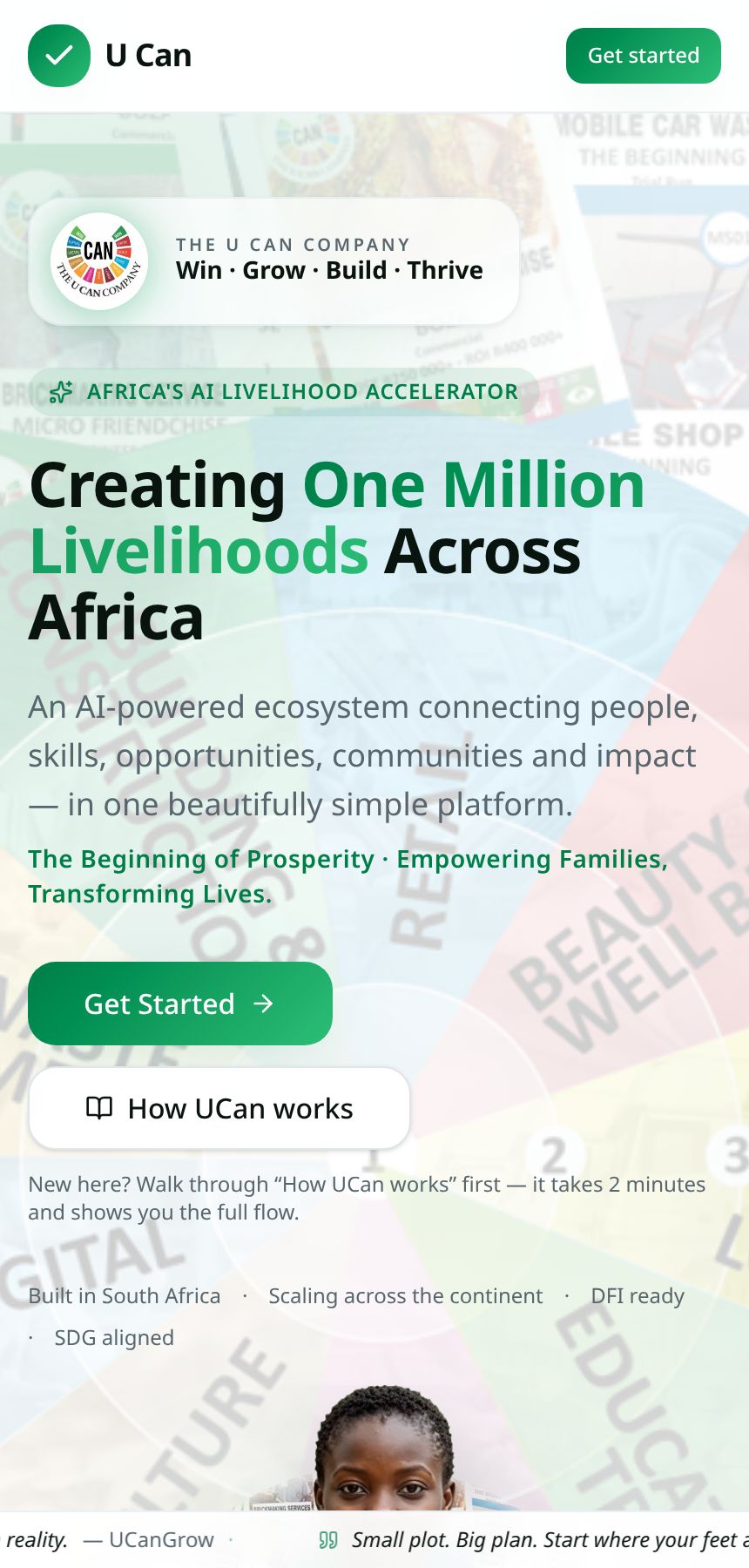
1 · New hero with Miriam and the livelihood wheel

The landing page opens on the spinning livelihood wheel with Miriam in front of it. Tap Talk to Miriam to speak to her in a South African voice — no sign-up needed.

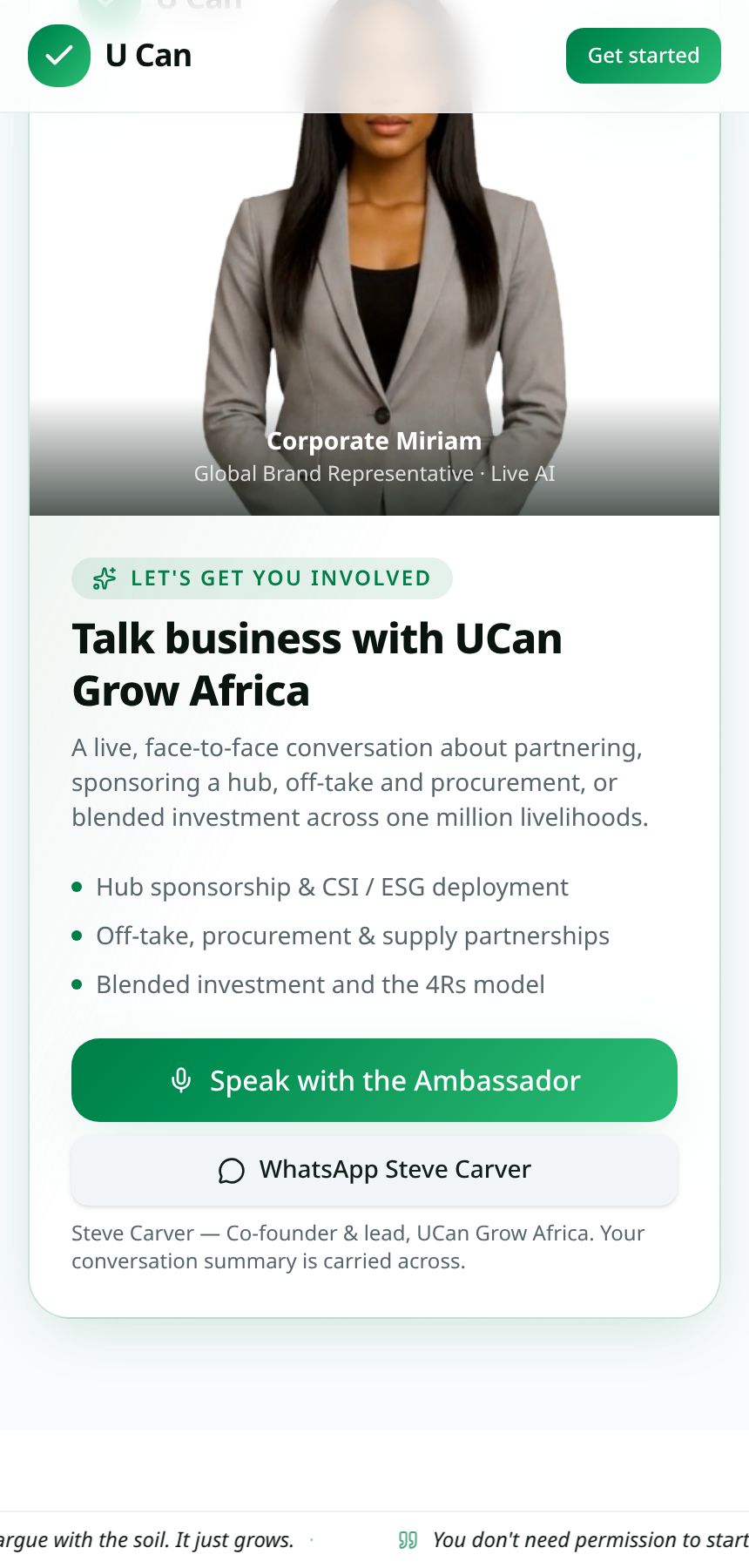
2 · Corporate Miriam, the global ambassador

Scroll down for the investor and partner ambassador: full-screen conversation, live captions and a WhatsApp handoff to Steve Carver.

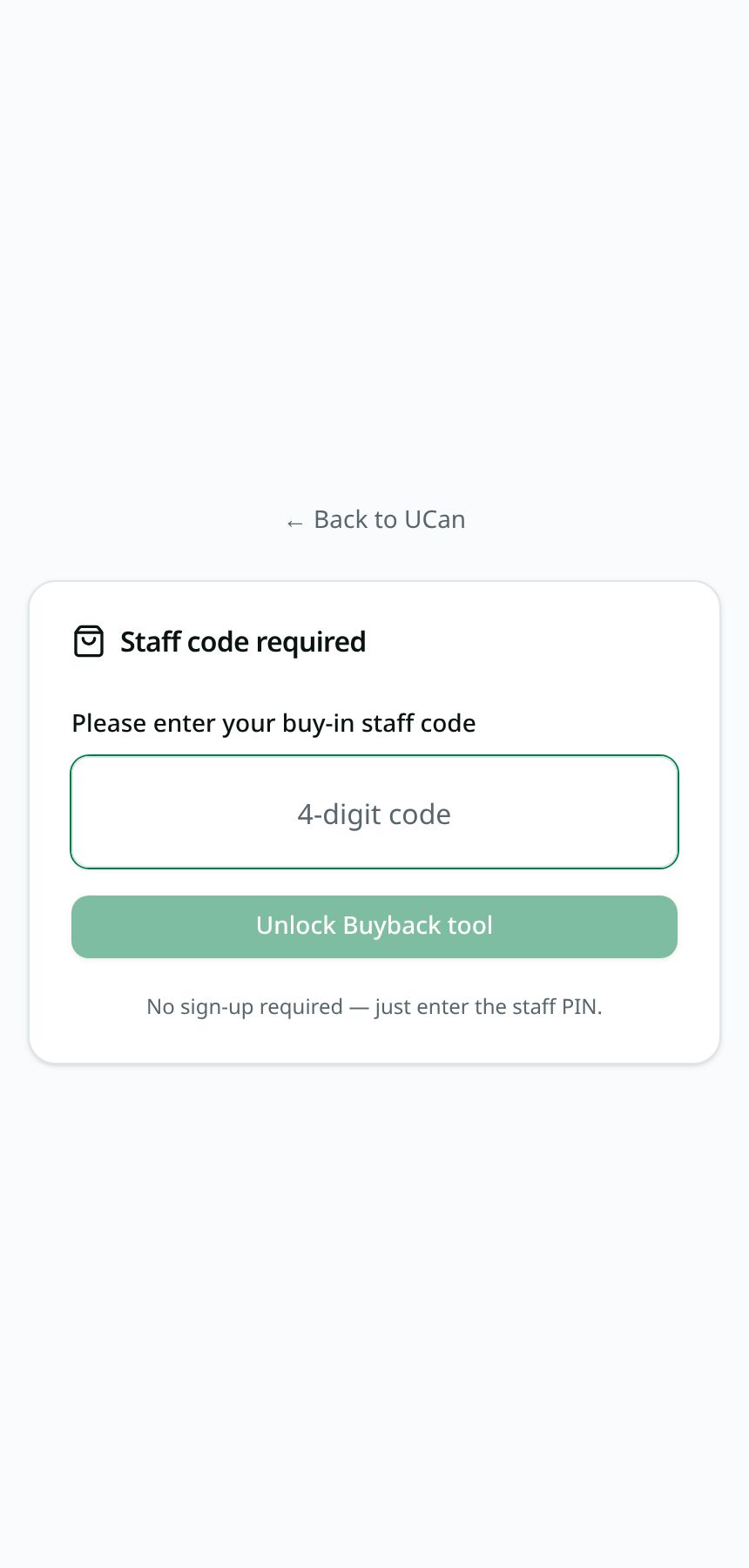
3 · Buyback across every hub livelihood

The staff tool now covers produce, plastics and waste, seedlings, compost, black soldier fly, seeds and other micro-businesses — hub-linked and GPS-stamped.

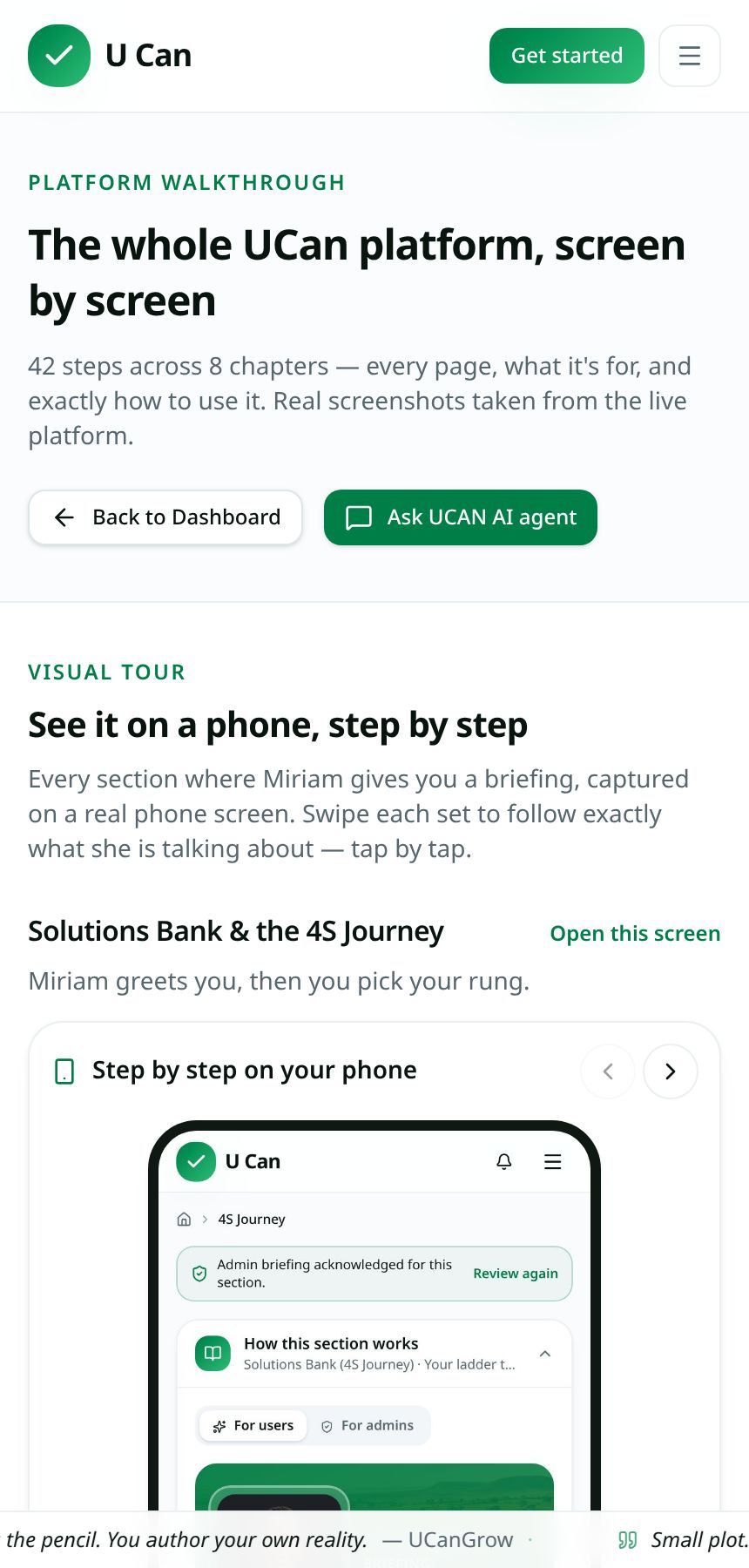
4 · Walkthrough and admin tutorials

The public walkthrough now carries admin tutorials too, including exactly how to approve new sign-ups in the War Room.

5 · Build Status board

A live account of everything shipped, the engineering behind it and the commercial value of the build.

Admin tutorials

Running the platform: approvals, roles and board packs

The owner-side flow, written out tap by tap — starting with the one that matters most: approving a new sign-up and giving them the right role.

01 · War Room → Admin actions → New sign-ups

Approve a new sign-up and set their role

Nobody gets platform access by simply registering. An admin approves each person and assigns the role that decides what they can see and do.

  1. 1Open Me → War Room. If anyone is waiting, a “Latest notifications” popup opens on arrival listing each pending member and the date they signed up.
  2. 2Tap Review sign-ups on the popup (or open the Admin actions tab, then New sign-ups).
  3. 3Tap the big “Check for new sign-ups” button at the top. It re-polls the database live and shows the current waiting count in the badge.
  4. 4Each waiting person shows their name, community and sign-up date. Pick their role from the grouped dropdown — Platform, Producers, Market, Micro-enterprise or Institutional.
  5. 5Tap Approve. The role is written server-side, the member disappears from the waiting list and the counters everywhere refresh immediately.
The list also auto-refreshes every 60 seconds, and the admin notice card at the bottom of your profile shows the same waiting count so you never miss a sign-up.
02 · War Room → Admin actions → Members & roles

Change or remove someone's role later

People move: a farmer becomes a hub manager, a field officer leaves. Roles are additive and can be granted or revoked at any time.

  1. 1Open the Members & roles tab and search by name or community.
  2. 2Existing roles show as chips next to each member. Tap the × on a chip to revoke that role.
  3. 3Use the “Add role…” dropdown on the right of the row to grant an extra role from the 40+ ecosystem role types.
  4. 4Every change is checked server-side against has_role() — there is no client-side privilege anywhere in the app.
03 · War Room → Admin actions → Applications

Review opportunity applications

Every application a member submits lands here with their particulars and the match score, so decisions are made on evidence, not memory.

  1. 1Open the Applications tab to see the pending queue with applicant, opportunity, organisation, location, community and match %.
  2. 2Add a short decision note in the text box — it is stored with the decision for the audit trail.
  3. 3Tap Approve or Reject. The applicant's record updates instantly and the queue count drops.
04 · War Room → Admin actions → Farmer status

Update a farmer's status

Field teams need standing and notes on growers to stay current between site visits.

  1. 1Open the Farmer status tab and find the grower.
  2. 2Set their standing and add a note about what was seen or agreed on the ground.
  3. 3Save — the change flows into the map, the pulse counters and the executive briefing.
05 · War Room → Briefing

Generate a board pack (PDF or CSV)

Funders and boards want a document, not a login. The briefing builds one from live data in seconds.

  1. 1Open the Briefing tab. A 30-day executive narrative is generated from live pulse data: situation summary, KPI grid with velocity, top crops, opportunity funnel, command board and latest activity.
  2. 2Tap Download PDF for a branded A4 board pack, or Export CSV for the raw figures.
  3. 3Use the header Export CSV on the map view for a fast, one-click snapshot of plots, hubs and buybacks.
06 · War Room → Alerts & decisions

Raise an alert and log a decision

The command board keeps operational issues and the choices made about them in one auditable place.

  1. 1Tap New alert, choose info, warning or critical, and describe the issue.
  2. 2Acknowledge it while it is being worked, then Resolve it when it is closed. The tab badge counts anything unresolved.
  3. 3Log a decision with a named owner so the board pack shows who committed to what.
07 · /buyin — public staff tool, 4-digit PIN

Run a buyback shift across all livelihood streams

Field staff share one device and capture purchases from the whole hub economy, not just vegetables.

  1. 1Open /buyin and unlock with the 4-digit staff PIN. No email sign-up is required.
  2. 2The device GPS auto-selects the nearest live hub; you can search a distance-sorted hub list to override it.
  3. 3Choose the stream — produce, plastics and waste, seedlings, compost and worm castings, black soldier fly, seeds, inputs or another micro-business — then the item.
  4. 4Snap the photo with the camera; GPS and timestamp are stamped automatically and the price list auto-prices the capture.
  5. 5Items with no listed price capture as pending for an admin to price later. End shift locks the day's takings and the recent-captures list reconciles by hub and stream.
Visual tour

See it on a phone, step by step

Every section where Miriam gives you a briefing, captured on a real phone screen. Swipe each set to follow exactly what she is talking about — tap by tap.

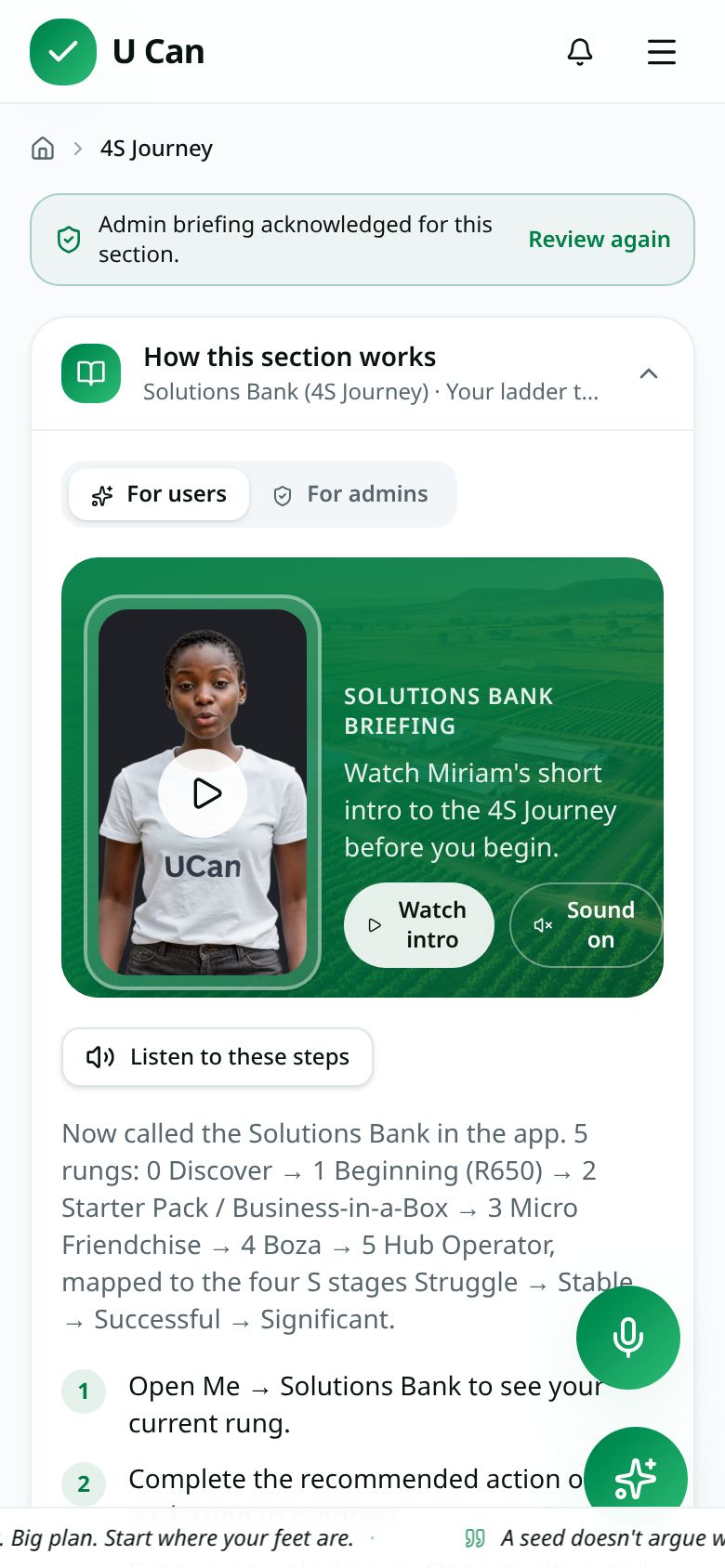
Solutions Bank & the 4S Journey

Open this screen

Miriam greets you, then you pick your rung.

Step by step on your phone
1 · Miriam greets you

Open Me → Solutions Bank. Miriam's briefing card opens on its own. Tap Watch intro, then Sound on to hear her.

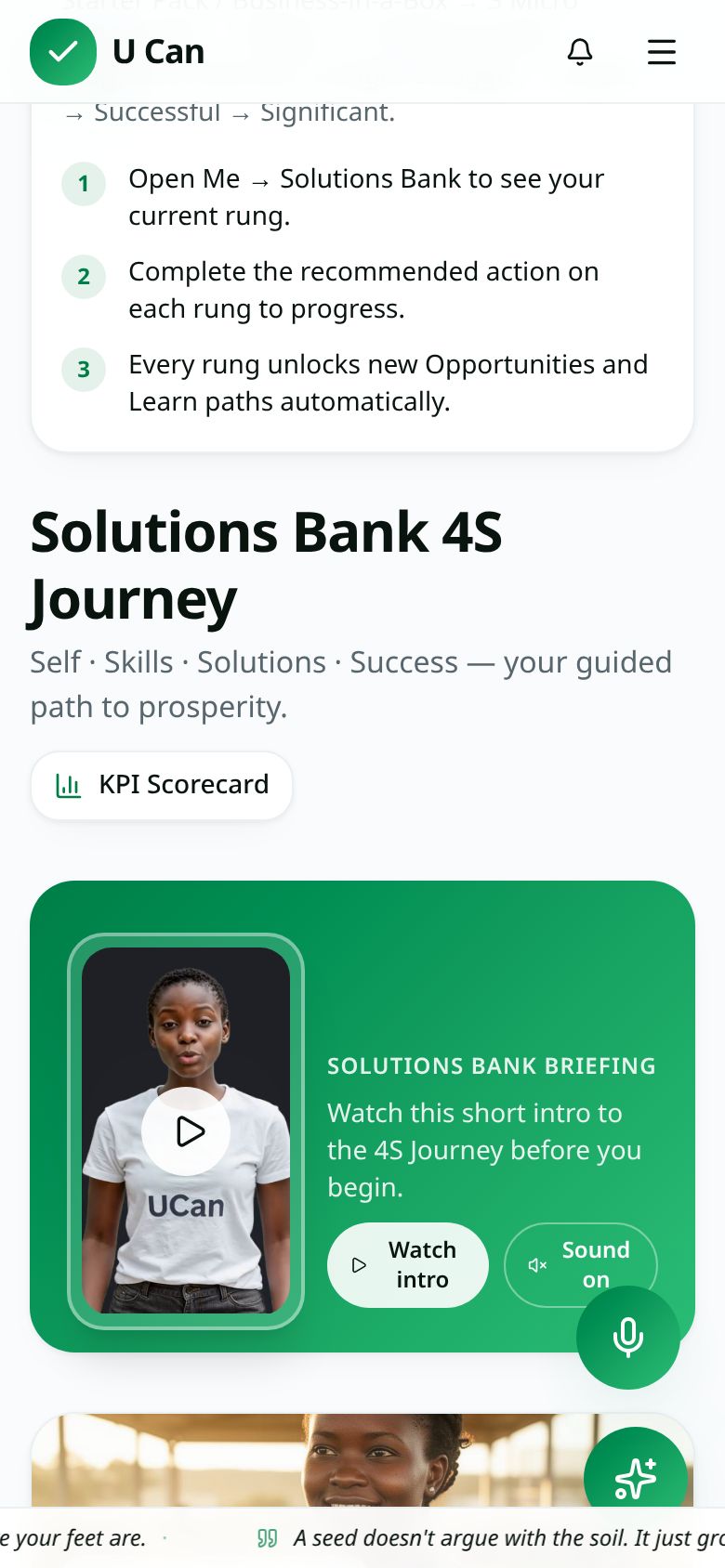
2 · Read the steps under her

Under the video are the numbered steps. Tap Listen to these steps if you would rather hear them read out.

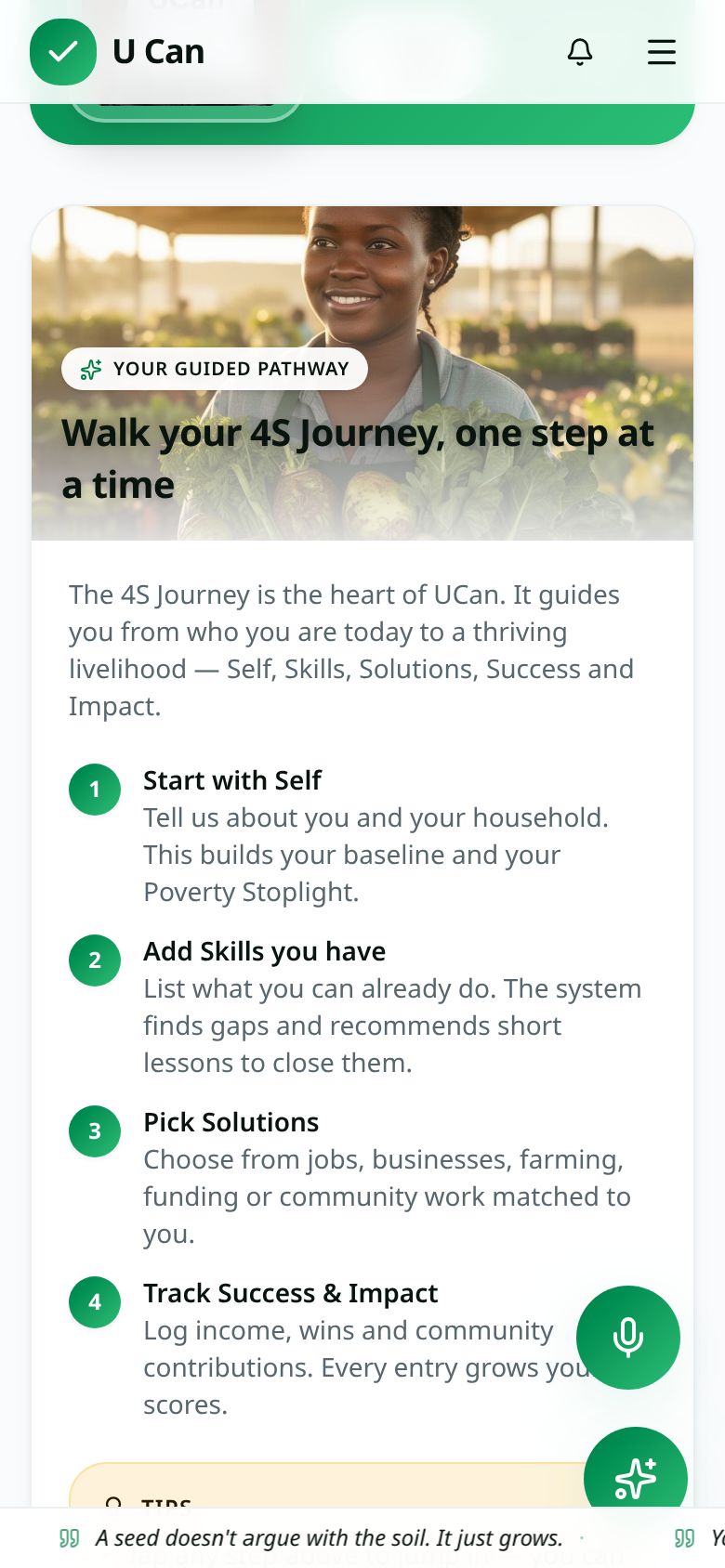
3 · Pick your rung and continue

Scroll to your rung, tap it, then tap Save & continue at the bottom of the card to move to the next S.

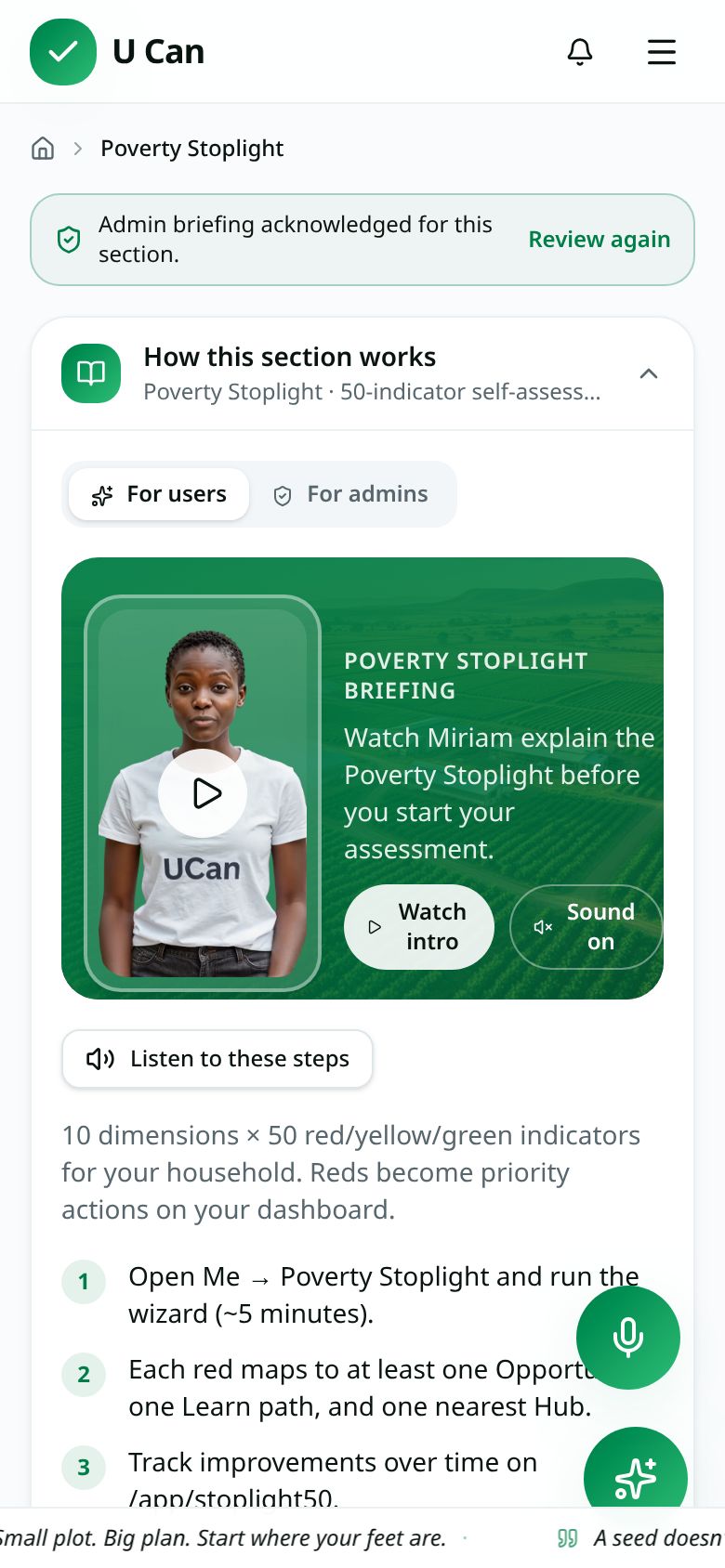
Poverty Stoplight

Open this screen

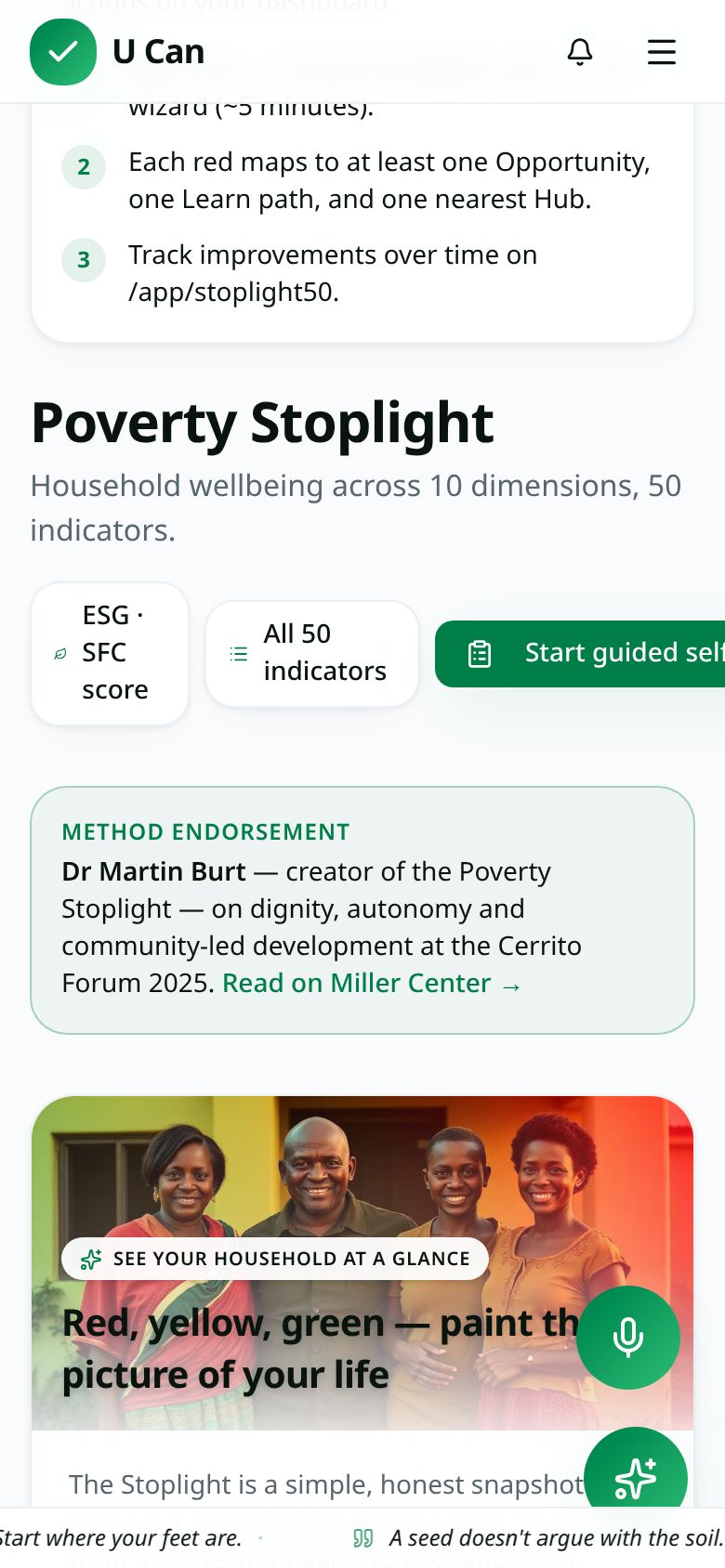
Red, amber, green — one indicator at a time.

Step by step on your phone
1 · Watch the Stoplight briefing

Miriam explains red, amber and green before you answer anything. Red is a target, not a failure.

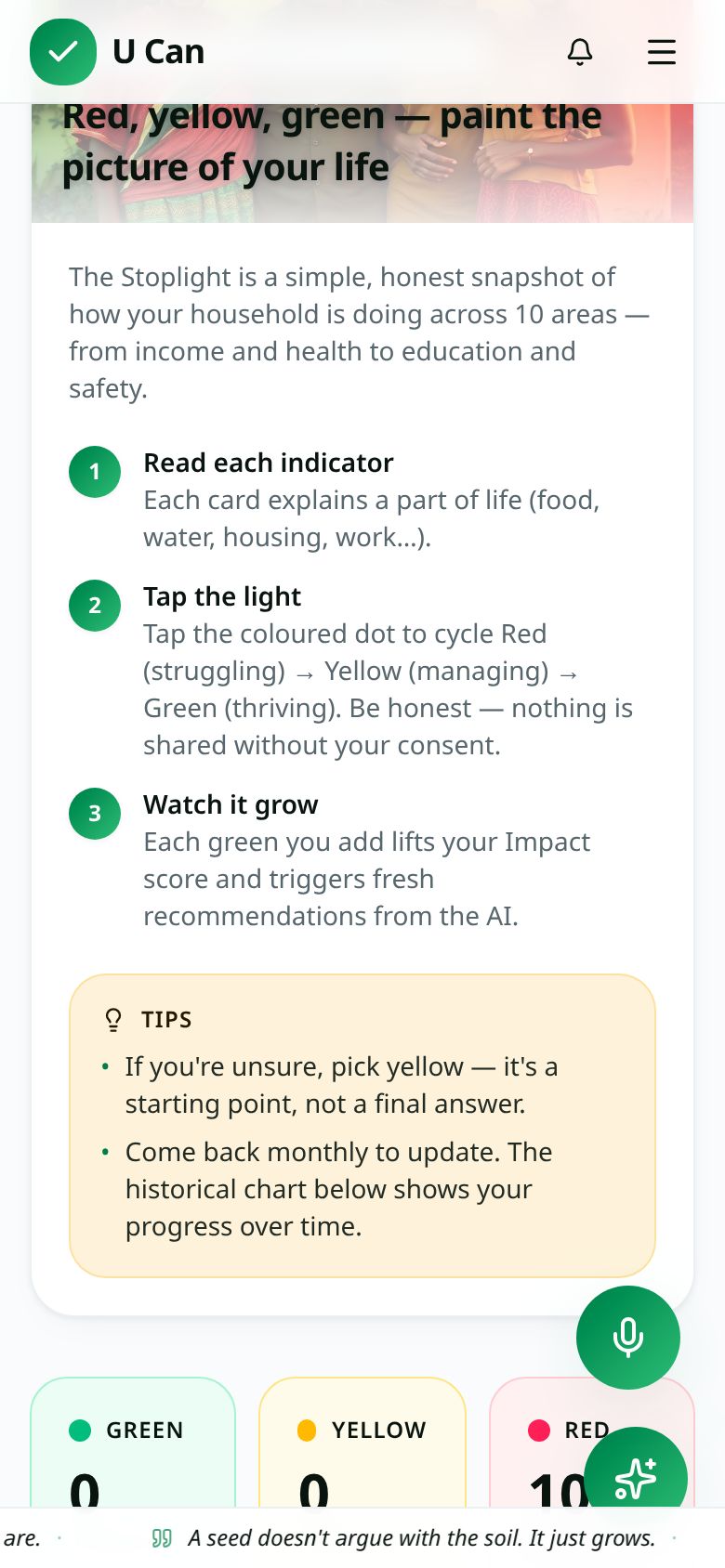
2 · Answer one indicator at a time

Tap the colour that matches your life right now. There is no wrong answer and nothing is shared publicly.

3 · See your reddest three

When you finish, your three reddest indicators become action cards on your dashboard.

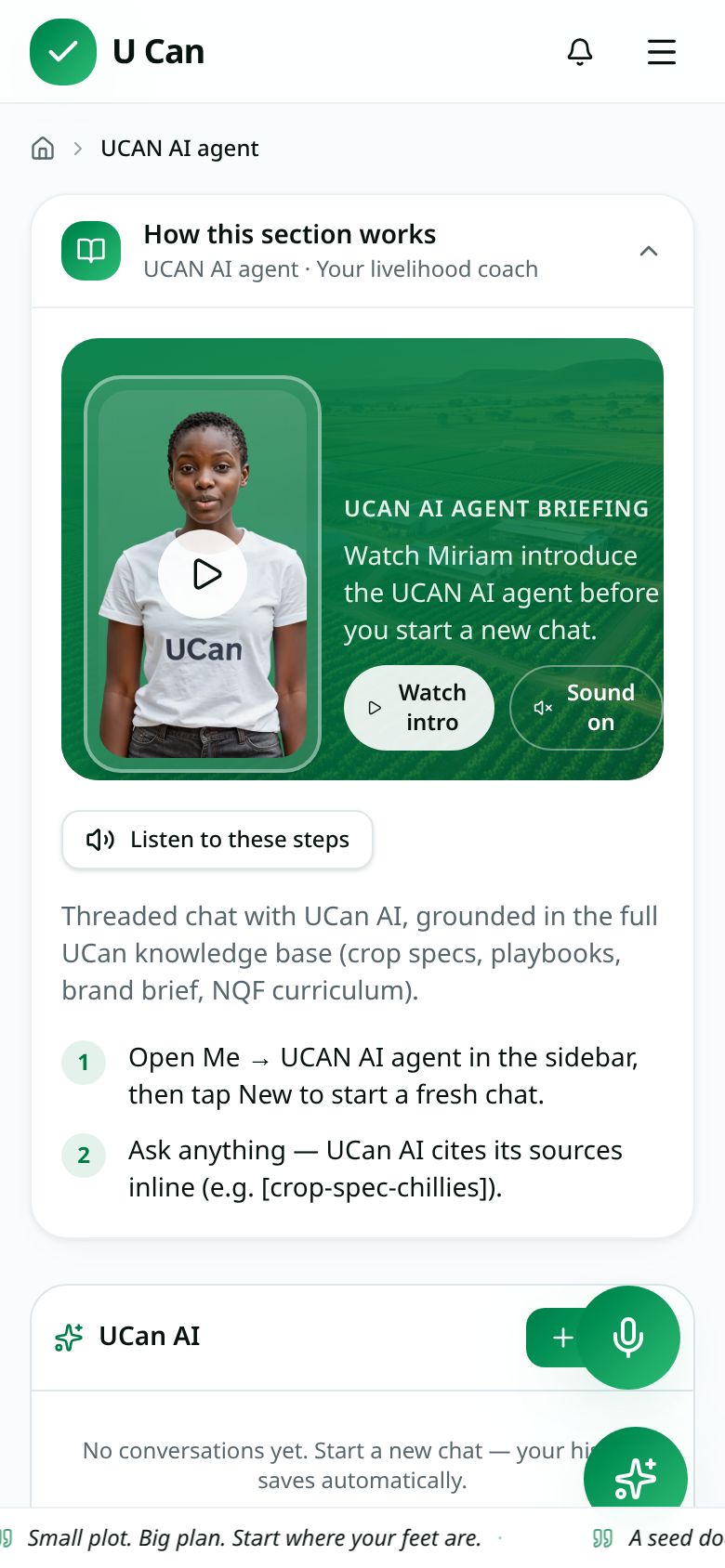
UCAN AI agent

Open this screen

Ask anything in your own words.

Step by step on your phone
1 · Miriam introduces the agent

The briefing opens automatically the first time you tap UCAN AI agent under Me.

2 · Ask in your own words

Type or tap a suggested question. The agent only answers from UCan's own material and your own profile.

3 · Follow the links it gives you

Answers link straight to the page you need — Match, Learn, a ladder or an opportunity.

Enterprise Ladders

Open this screen

33 ladders, rung by rung, with real costs.

Step by step on your phone
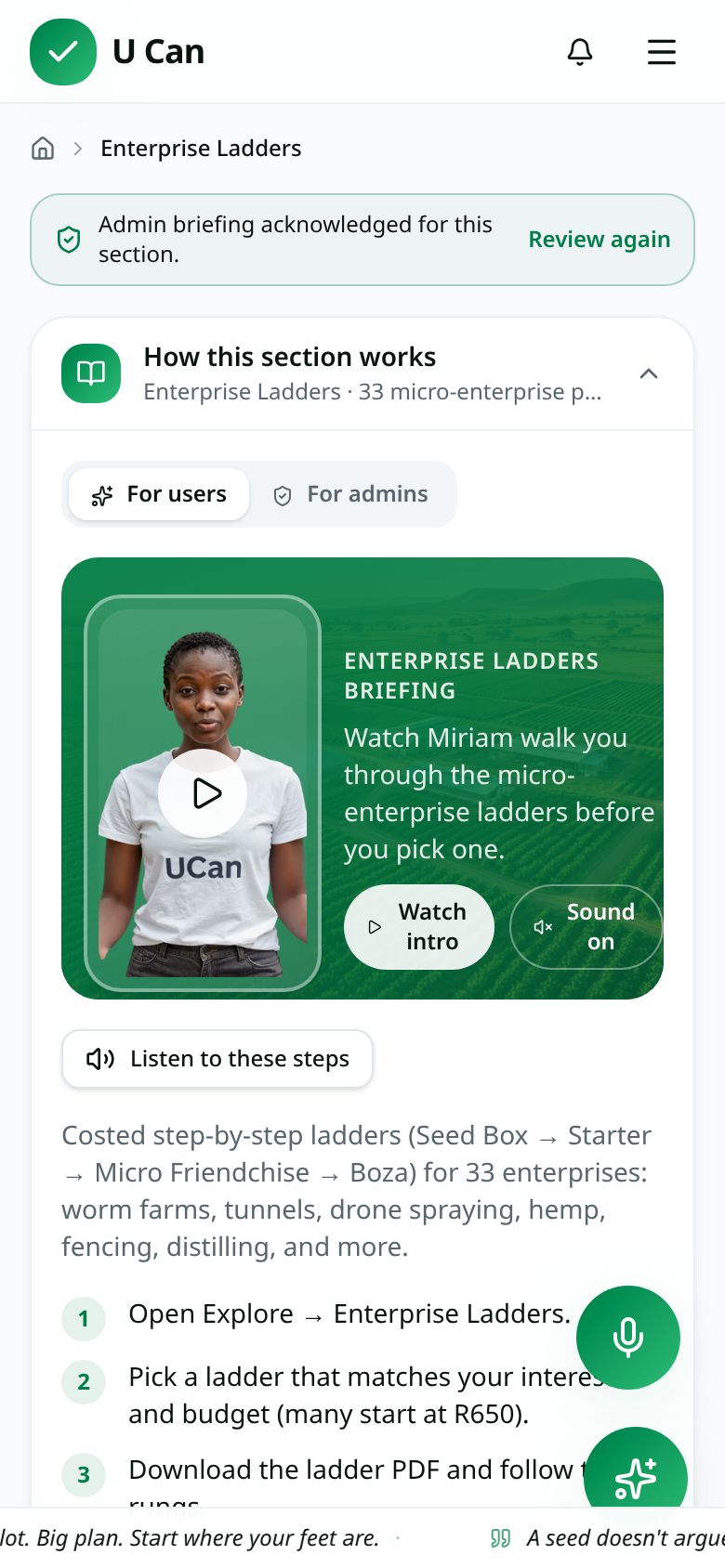
1 · Ladders briefing

Miriam explains what a micro-enterprise ladder is: Seed Box → Starter → Micro Friendchise → Boza.

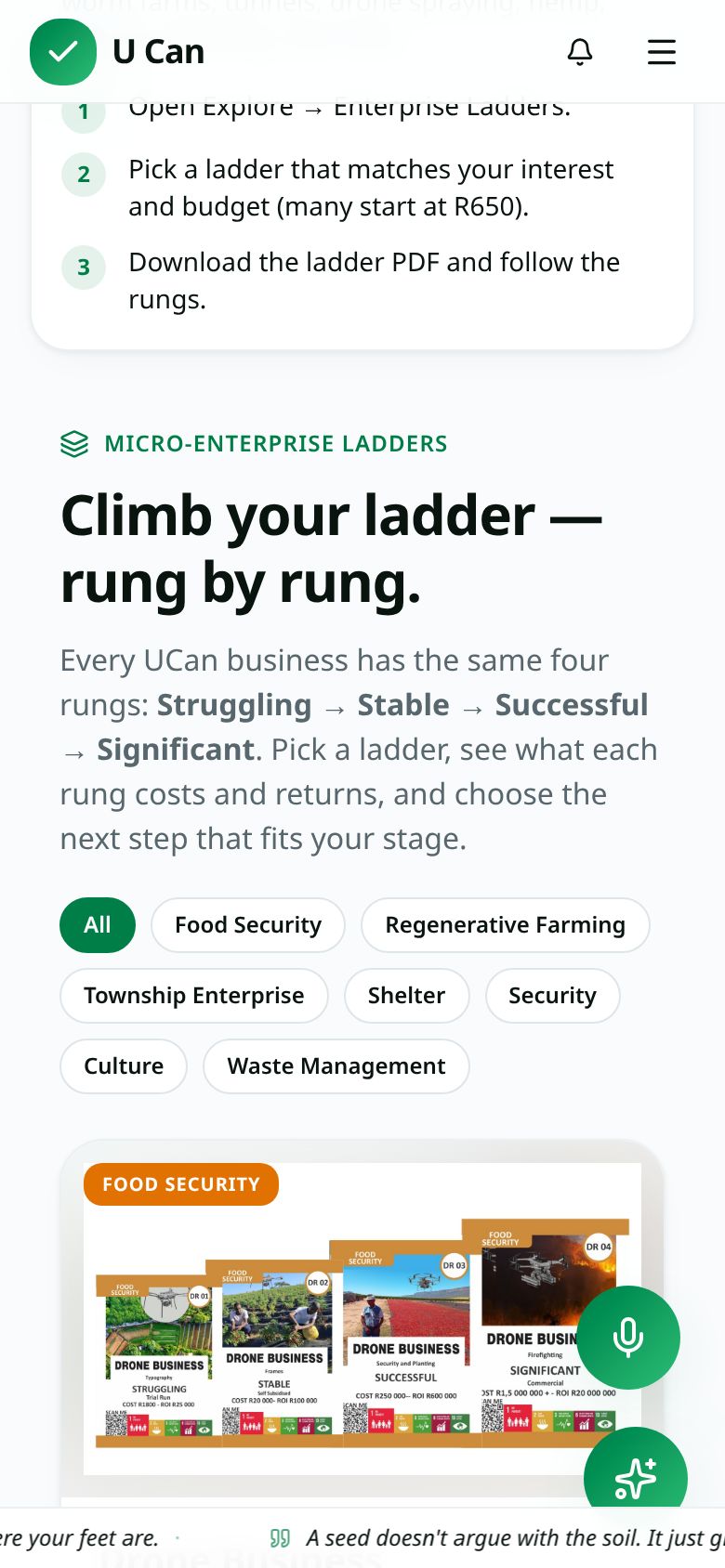
2 · Browse the 33 ladders

Scroll the categories and tap any ladder card to open its rungs and costs.

3 · Read the rung economics

Each rung shows what you need, what it costs and what you can earn. Download the PDF to work offline.

Micro-Franchise Library

Open this screen

Proven recipes with supply and a buyer.

Step by step on your phone
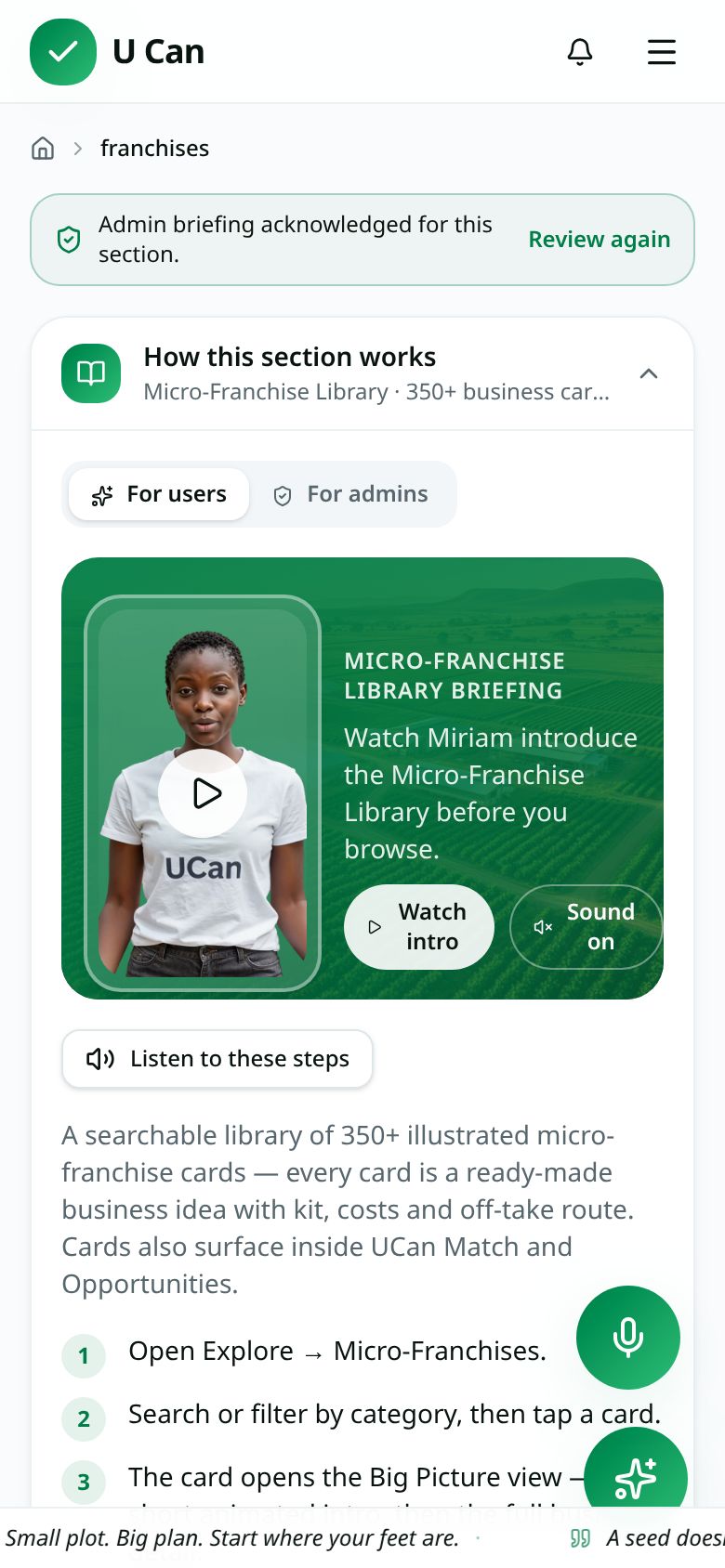
1 · Franchise Library briefing

Miriam explains what a micro-franchise gives you: a proven recipe, supply and a buyer.

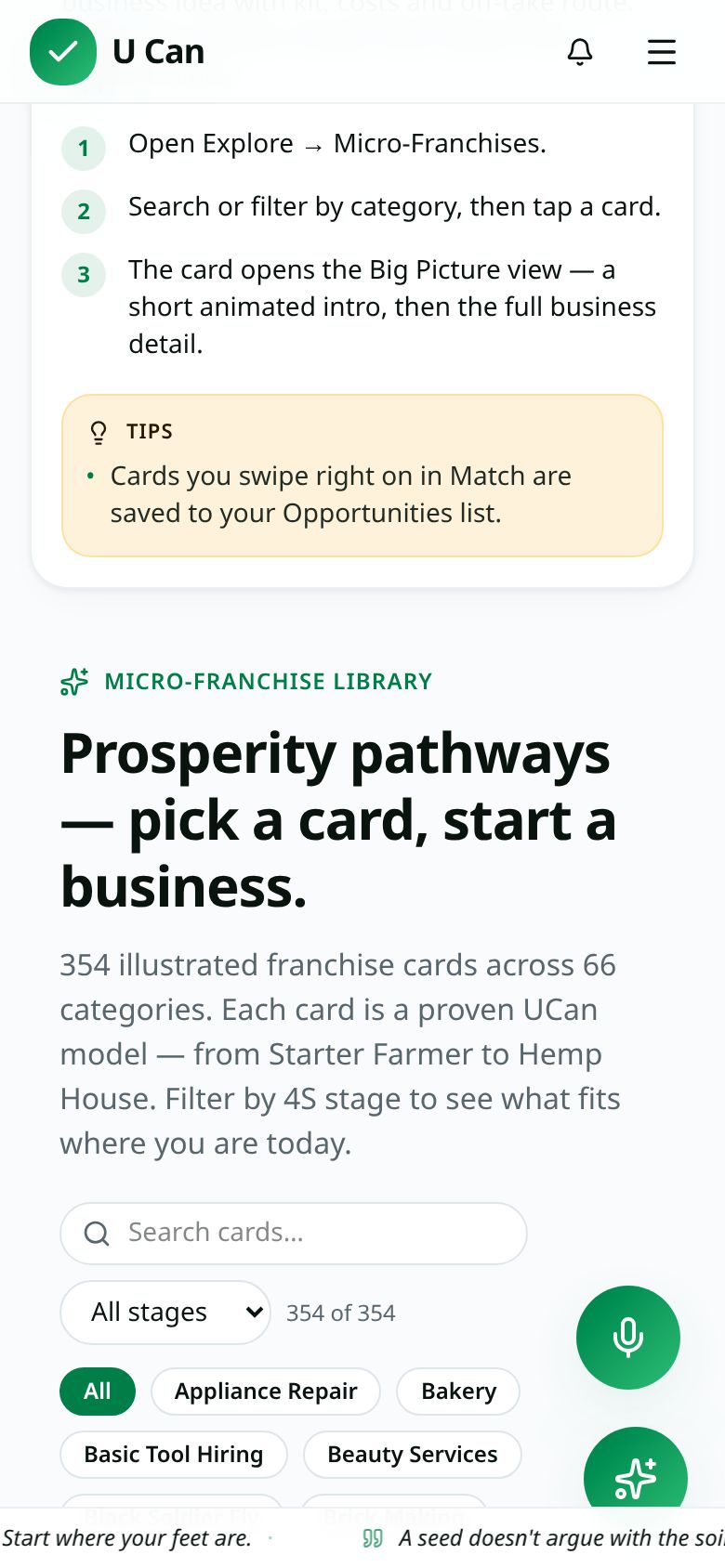
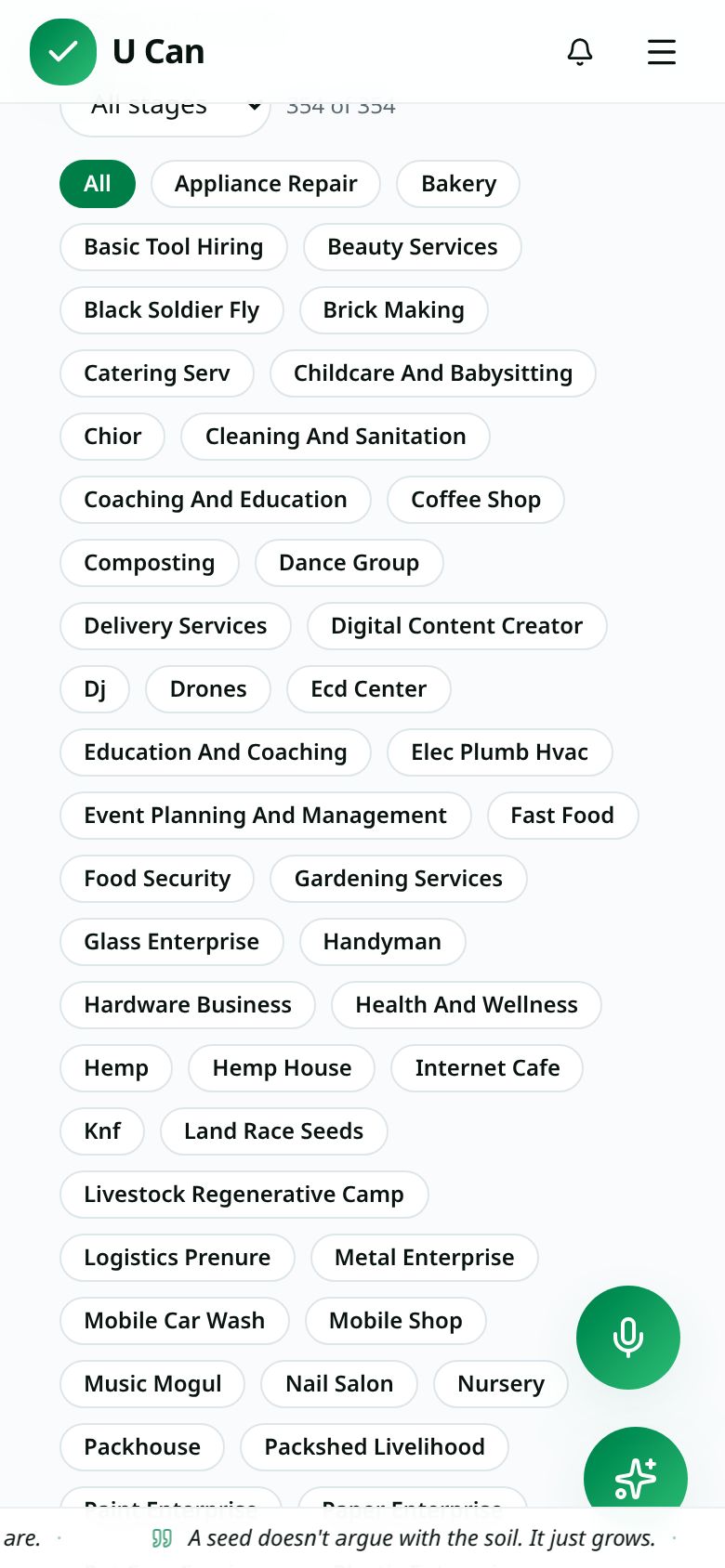
2 · Scan the library

Swipe the cards and check the start-up cost band against what you can raise.

3 · Open one and apply

Tap a franchise for the full pack, then apply — your application lands in the War Room.

Hub first, then farm, then plots.

Step by step on your phone
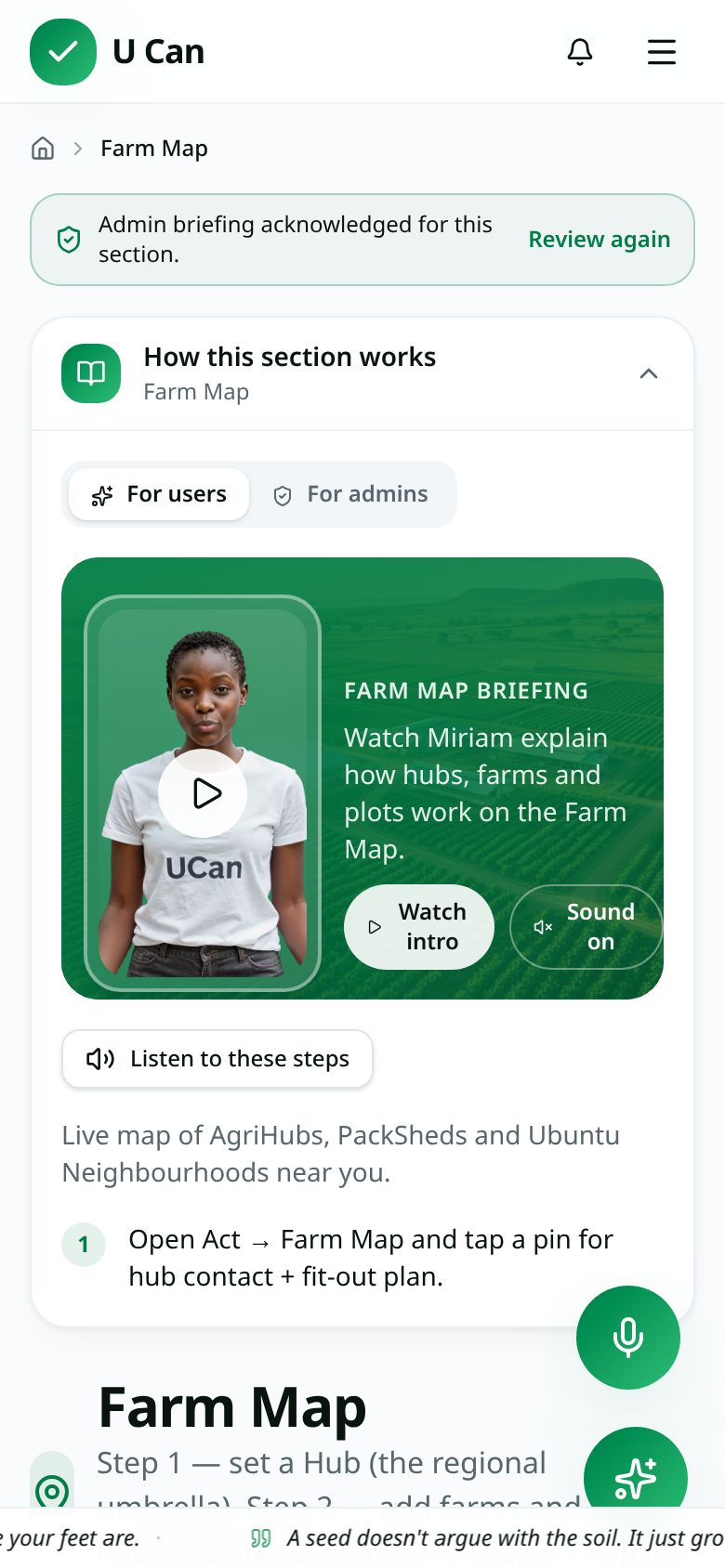
1 · Farm Map briefing

Miriam explains the order: set a hub first, then a farm or business, then plots inside it.

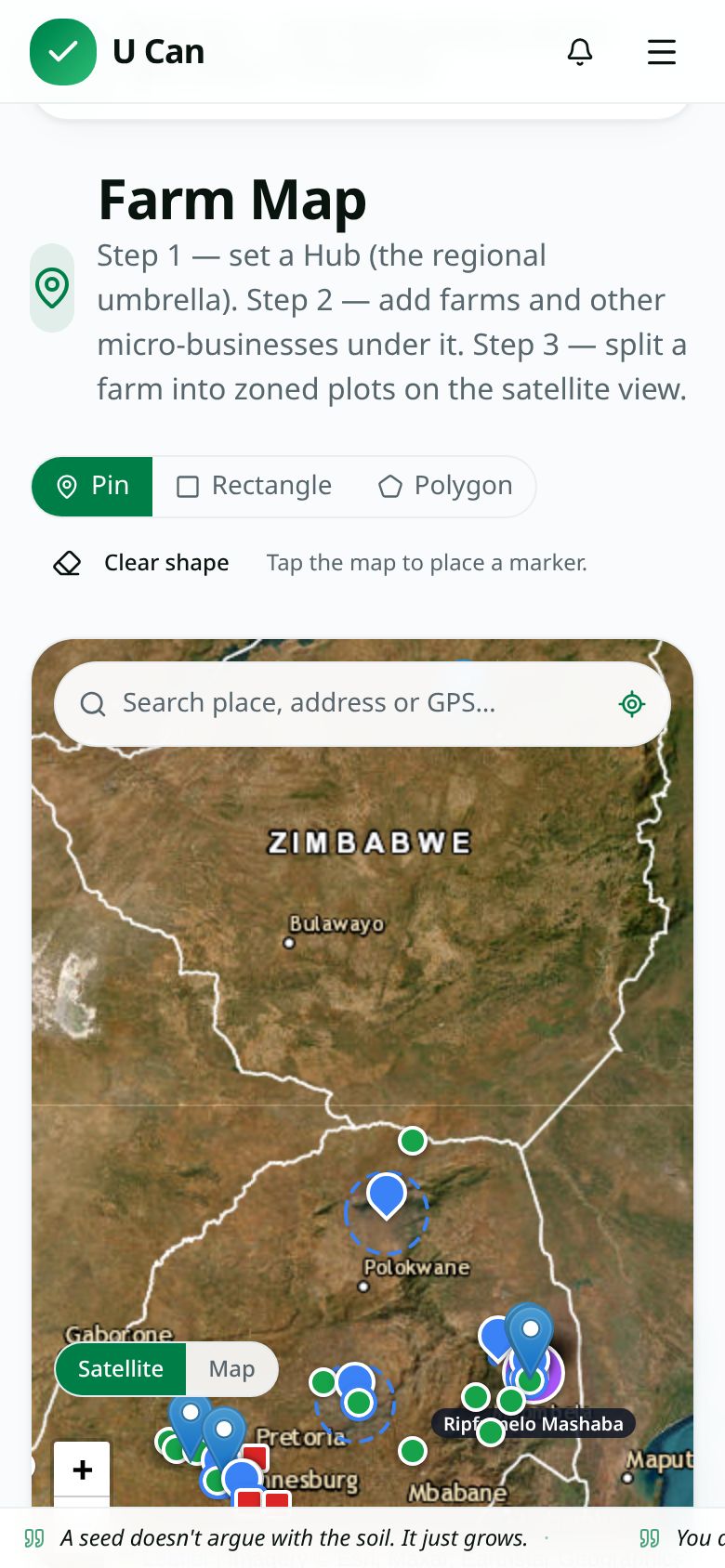
2 · Find your place
2 · Find your place

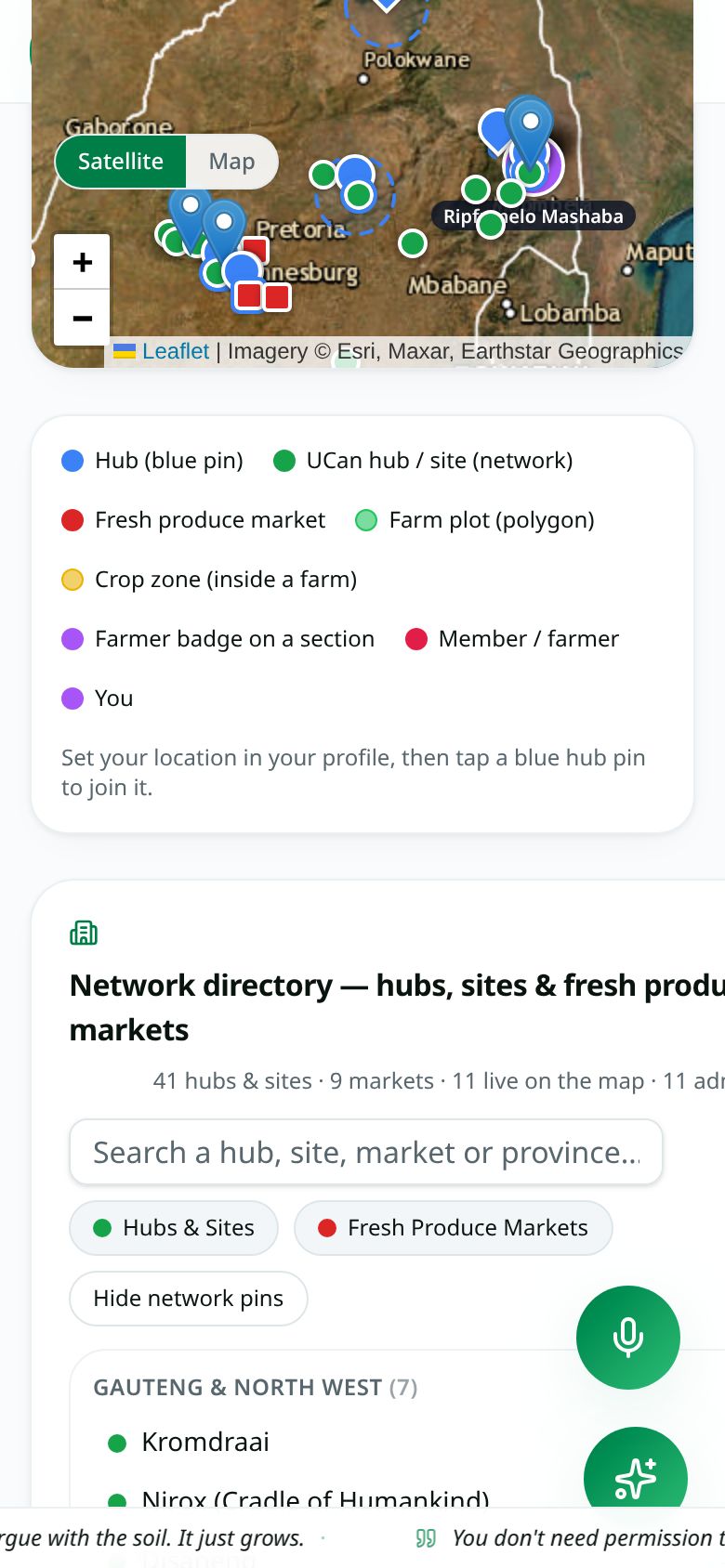
Use the search box for an address, GPS point or a hub in the network directory, or tap Use my location.

3 · Draw and save a plot

Tap Draw, trace the boundary with your finger, then save. Size and crop details are captured with it.

Swipe your way to your best-fit pathways.

Step by step on your phone
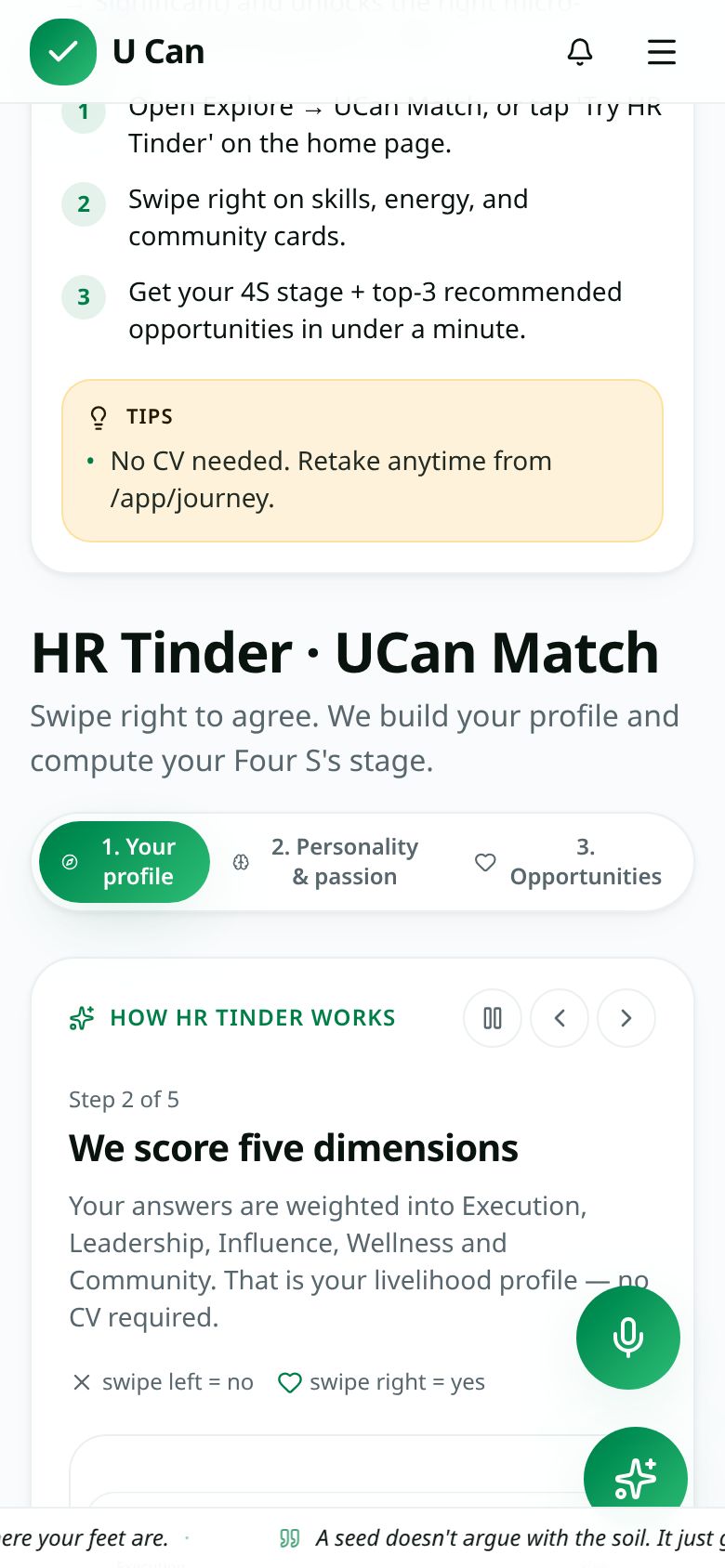
1 · Match briefing
1 · Match briefing

Miriam explains the 60-second intake before you swipe a single card.

2 · Swipe the cards
2 · Swipe the cards

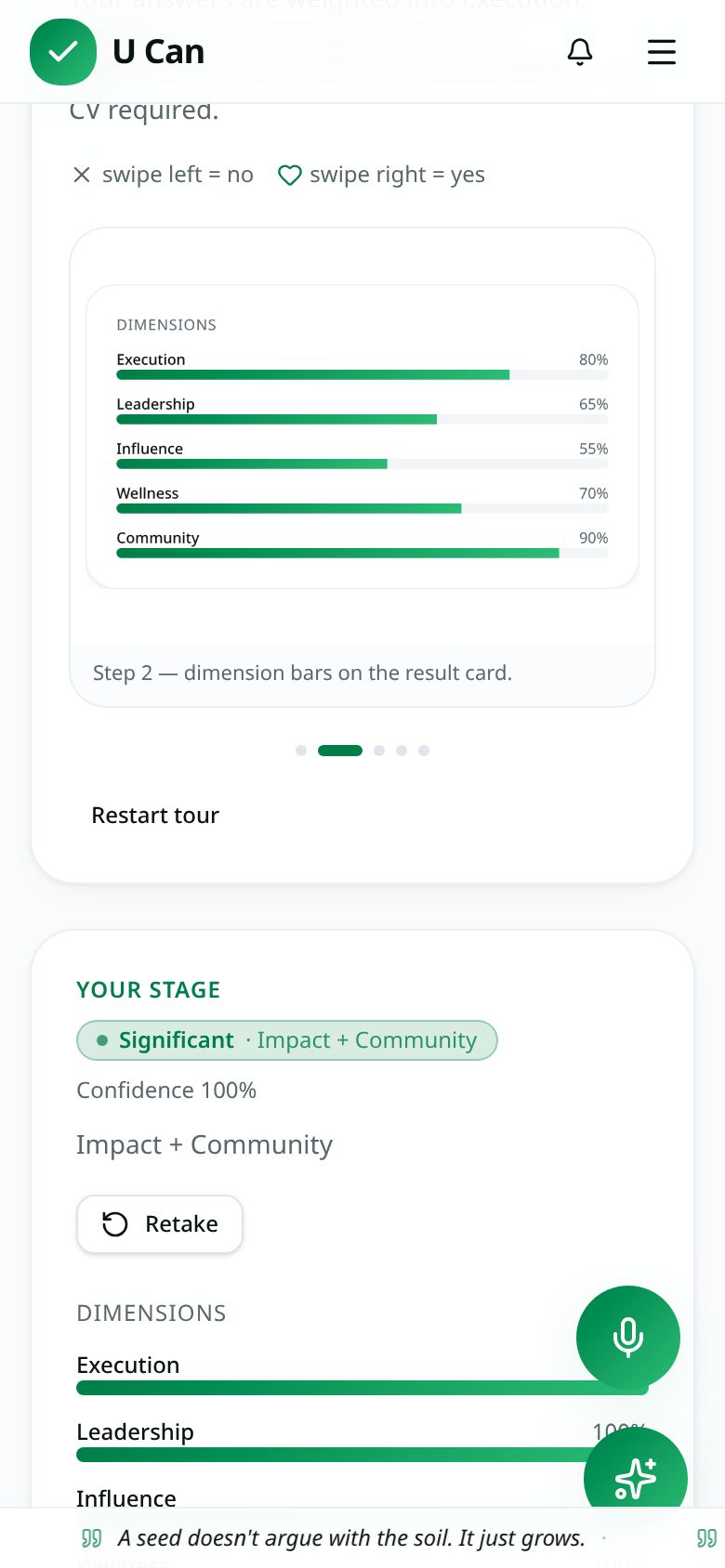
Swipe right for “Fits me”, left for “Not me”. Your progress saves as you go, so you can stop any time.

3 · Read your result

The wheel spins, then you get your 4S stage and your six best-fit pathways. Retake it whenever you change.

Opportunities

Open this screen

Scored against your own profile, then apply.

Step by step on your phone
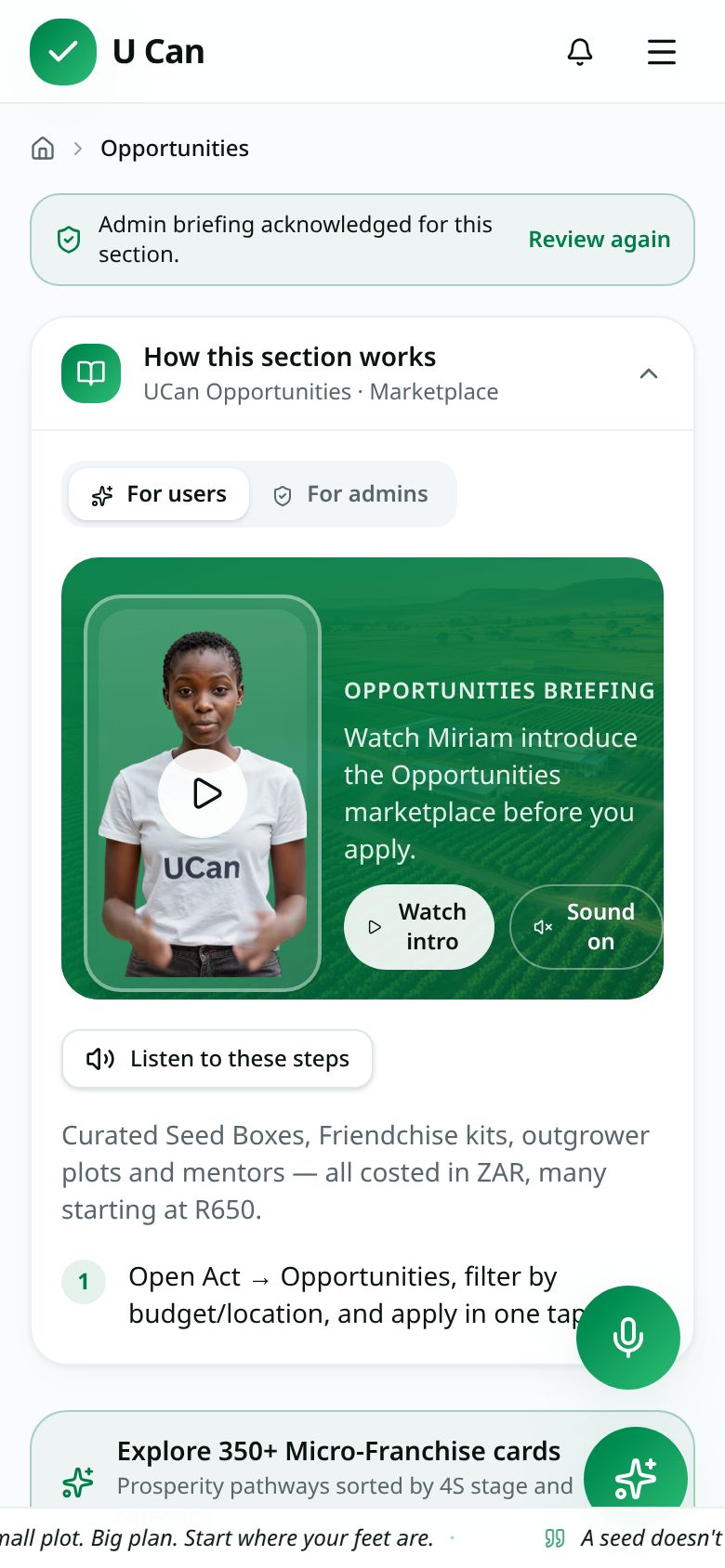
1 · Opportunities briefing

Miriam explains how opportunities are scored against your own profile.

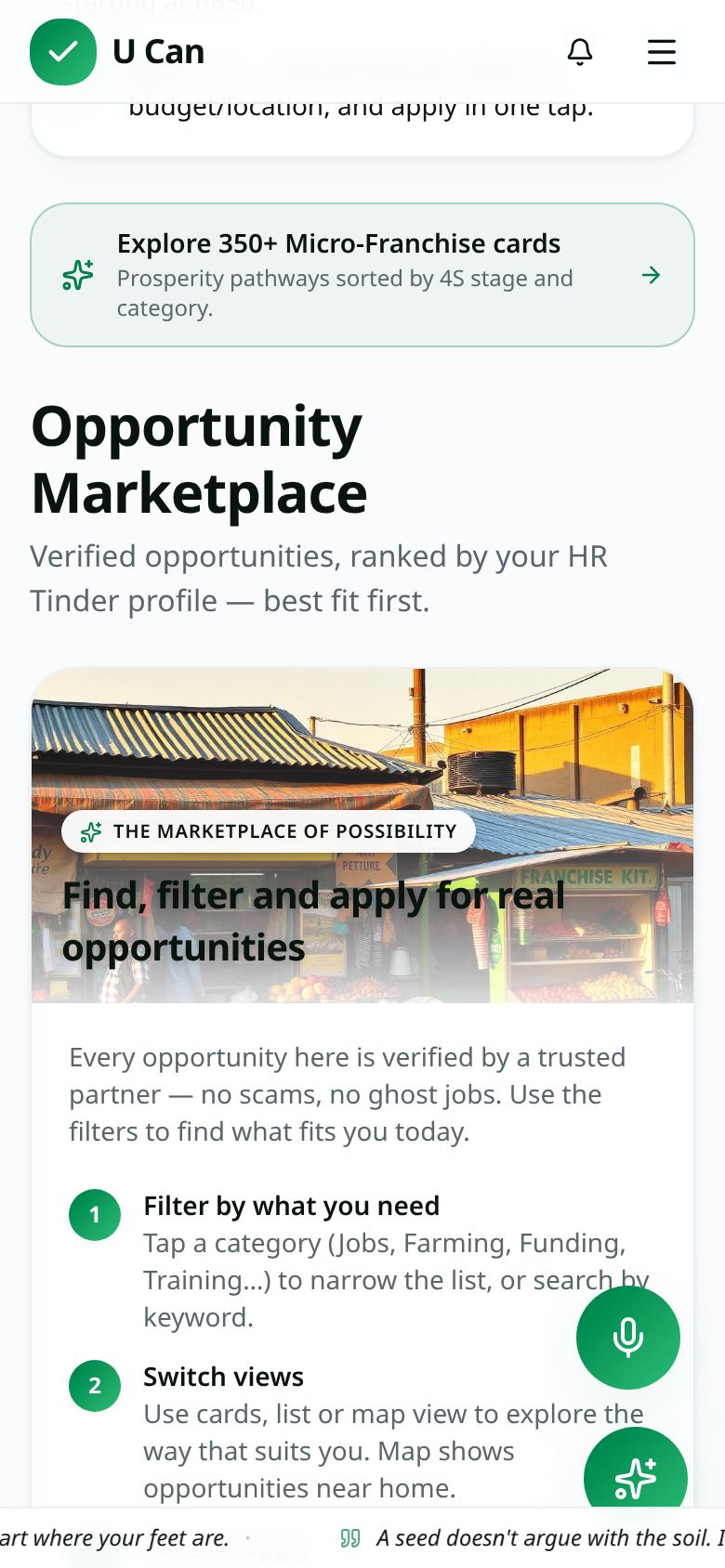
2 · Filter to what fits

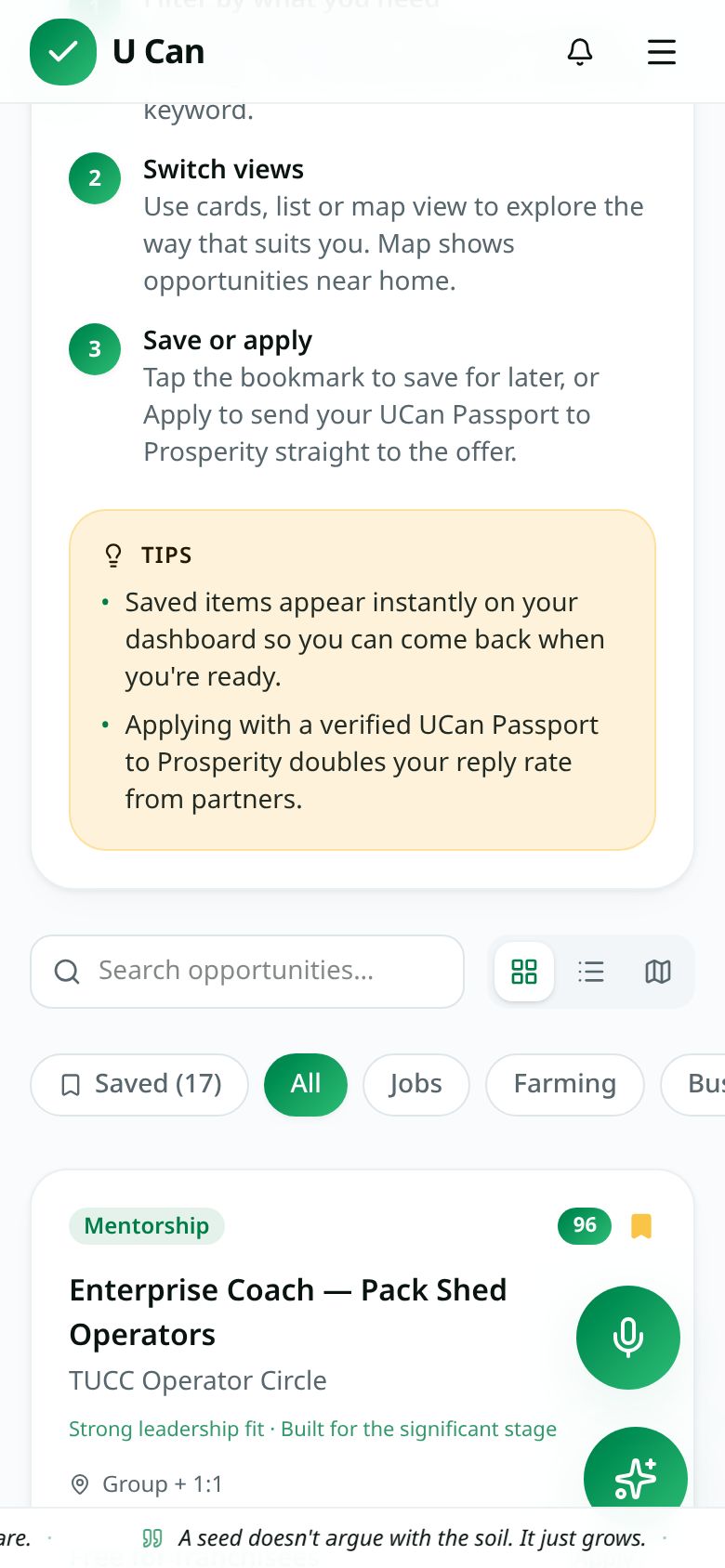
Filter by saved, ladder or stage so you only see openings you can realistically take.

3 · Open and apply
3 · Open and apply

Tap one to see requirements and why it matched, then Apply. You get an email and the team sees it instantly.

Jump to a section (42 steps)
1 · Start here
2 · The Standard
3 · Your dashboard
4 · Match & opportunities
5 · Libraries & learning
6 · Land & operations
7 · Community & impact
8 · Capital & proof
Step 1 of 42 · 1 · Start here

The front door

/
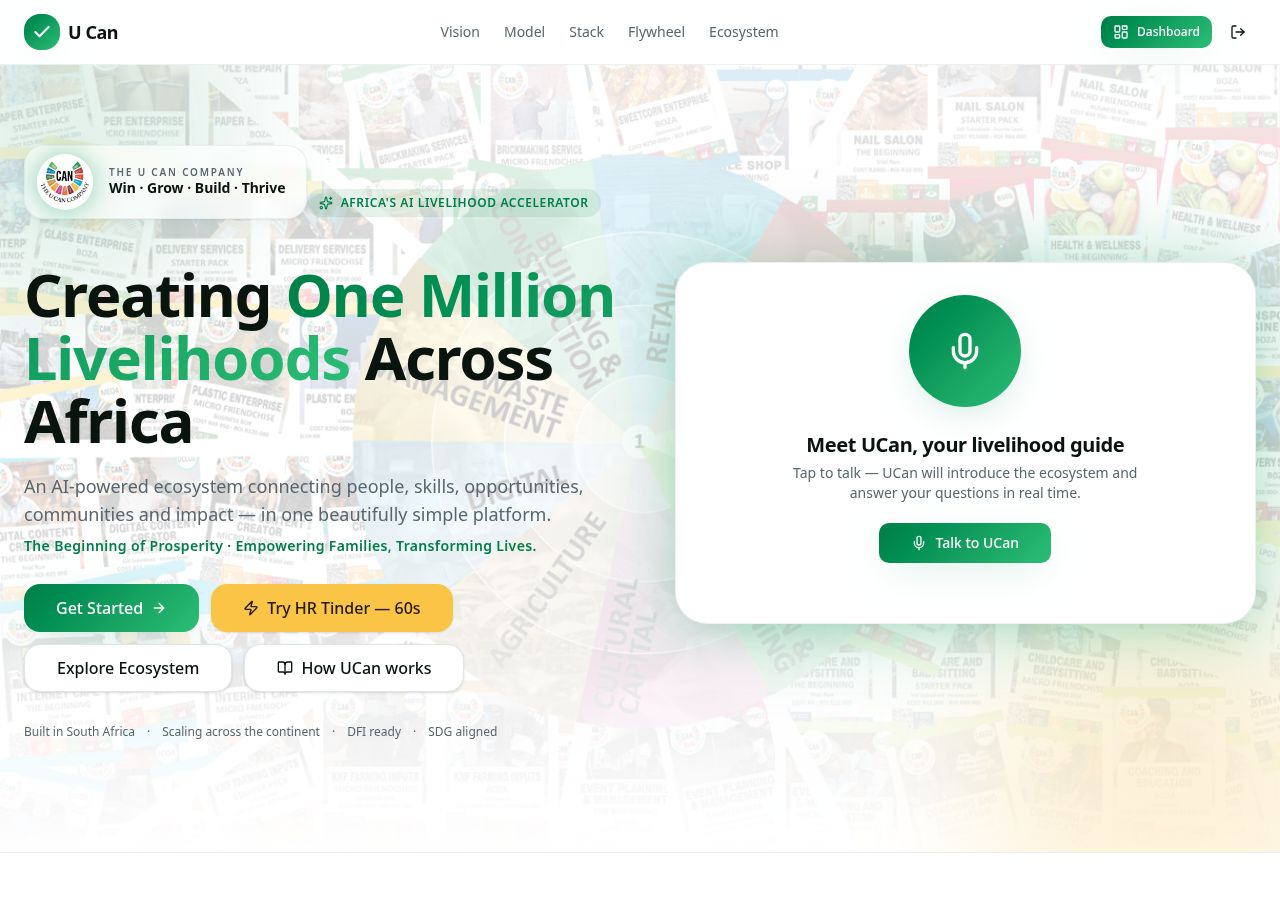
Screenshot of the The front door screen in the UCan platform

The landing page is where anyone meets UCan — the mission video, the live voice agent, the AI guide, and the HR Tinder 60-second intake.

How to use it
  • Tap “How UCan works” — the guided tour is compulsory the first time: no skipping, each step holds briefly and you confirm you understand before moving on.
  • “Get Started” only appears once you have finished the walkthrough.
  • Talk to the voice agent — it answers out loud in plain language.
  • Type a question into the UCan AI chat box, or pick one of the suggested prompts.
Everything on this page works without an account — you only sign up when you want to save results.
Open this screen
The family holds the pencil. You author your own reality.— UCanGrow·Small plot. Big plan. Start where your feet are.·A seed doesn't argue with the soil. It just grows.·You don't need permission to start. You need one row planted.·Struggle is a stage, not a sentence.— Four S's·Consistency beats talent when talent doesn't show up.·Grow something today that feeds someone tomorrow.·Every harvest started as a decision nobody clapped for.·Your hustle is data. Log it, and it becomes credit.·One skill learned is one door unlocked.·The best time to plant was last season. The second best is now.·Ubuntu: I grow because we grow.·Rands follow rhythm — show up, record, repeat.·Stable is not the ceiling. It's the launch pad.·Dignity first, then the deal.— Dr Martin Burt·Feed your family, then feed your market.·You are three good habits away from a different year.·Off-takers buy reliability before they buy vegetables.·Big things grow in small beds.·Turn what you know into what you own.·The ladder only works if you take the next rung.·Significant means someone else climbs because of you.·Water the plan daily. Impatience kills more crops than drought.·Your community is your first customer and your best CV.·